

Digital Detox Made Easy: Use Screen Time Tools to Guard Your Mind and Time
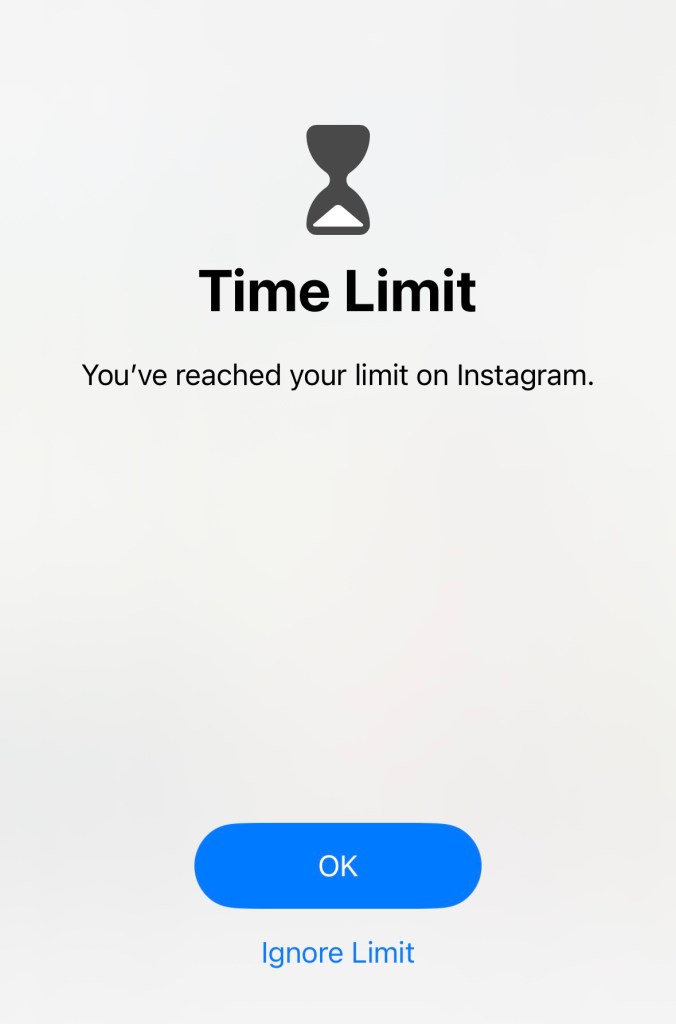
In our digitally driven world, we often find ourselves glued to our screens, whether it’s for work, socialising, or entertainment. This constant connectivity, while beneficial in many ways, can also take a toll on our mental health and productivity. One tool that is often underutilised but can have a significant impact is the screen time setting on our phones. By using this feature, we can manage our digital habits better, improve our focus, and create a healthier relationship with our devices.
Many of us underestimate the amount of time we spend on our phones. Hours can easily slip away as we scroll through social media, watch videos, or check emails. This not only eats into our productive hours but also affects our mental well-being. Too much screen time can lead to anxiety, stress, and a feeling of being overwhelmed. By setting screen time limits, we can take control of our day, allocate time to more meaningful activities, and create a more balanced lifestyle.
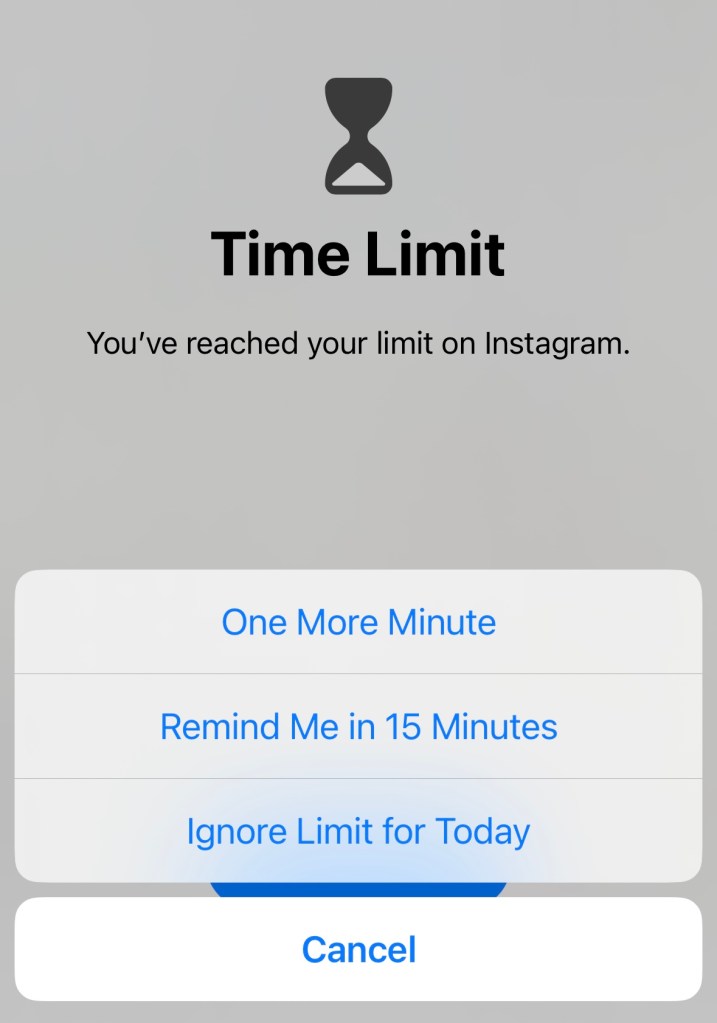
Using the screen time settings on your phone is a simple yet powerful way to reclaim your time. It helps you become more aware of your digital consumption and encourages you to make conscious choices about how you spend your day. Here’s how you can make the most of this valuable resource on both iPhone and Android devices.
How to Use the Screen Time Setting on Your Phone
iPhone
- Open Settings: Start by opening the Settings app on your iPhone.
- Select Screen Time: Scroll down and tap on the Screen Time option.
- Turn on Screen Time: If you haven’t already, toggle the Screen Time switch to turn it on.
- Set App Limits: Tap on App Limits, then Add Limit. Choose the categories or specific apps you want to limit and set your desired time limit.
- Schedule Downtime: You can also schedule downtime, which restricts access to all apps except those you allow during certain times. Go to Downtime, toggle it on, and set your start and end times.
- Review and Adjust: Regularly review your screen time reports to see how you’re doing and adjust your limits as needed.
Android
- Open Settings: Access the Settings app on your Android device.
- Select Digital Wellbeing & Parental Controls: Scroll down and tap on Digital Wellbeing & Parental Controls.
- Dashboard: Tap on Dashboard to see your app usage. Here you can view how much time you spend on each app.
- Set App Timers: Tap on the hourglass icon next to the app you want to limit. Set your desired daily time limit.
- Wind Down: Use the Wind Down feature to reduce eye strain and help you relax before bedtime. Go to Wind Down and set your start and end times. You can enable greyscale and Do Not Disturb mode during this period.
- Monitor and Adjust: Keep an eye on your usage patterns and make adjustments as necessary to stay within your limits.
Bonus Tip – Add a Screen Time Widget to Your Home Screen
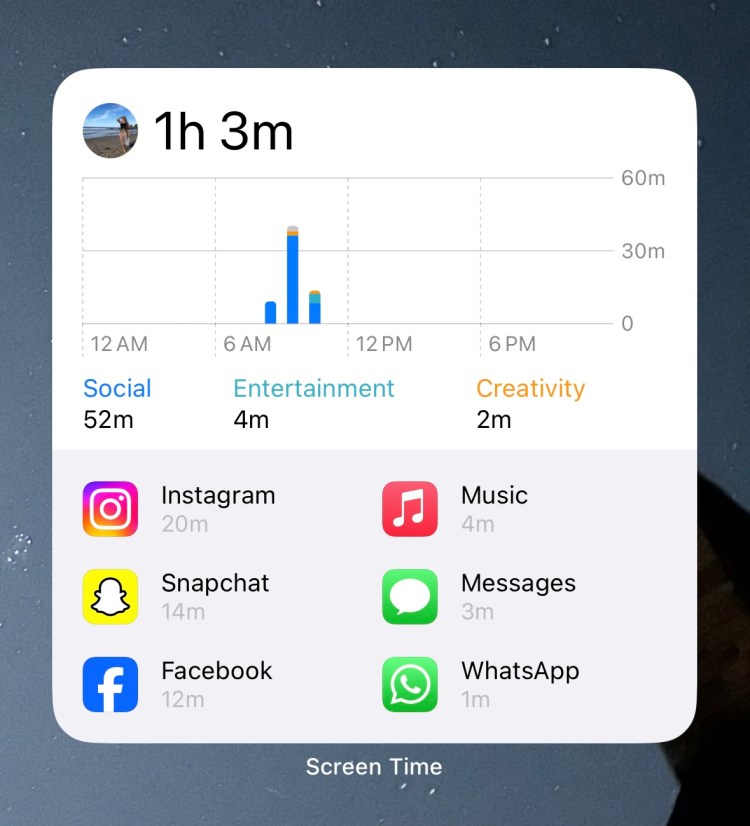
Widgets are another fantastic way to help you track and manage your time. By adding screen time widgets to your home or lock screen, you can get instant insights into your usage without having to navigate through menus. These widgets provide a visual reminder of how much time you’ve spent on your device, helping you to stay mindful and make better decisions throughout the day.
Adding a Widget on iPhone
- Press and Hold: On your home screen, press and hold an empty area or an app until the apps start to jiggle.
- Tap the Plus Icon: In the upper-left corner, tap the plus icon to open the widget gallery.
- Search for Screen Time: Scroll or search for the Screen Time widget.
- Choose a Widget Size: Select the widget size you prefer, then tap Add Widget.
- Position the Widget: Drag the widget to your desired location on the home screen and tap Done.
Adding a Widget on Android
- Press and Hold: On your home screen, press and hold an empty area until a menu appears.
- Select Widgets: Tap on Widgets from the menu.
- Search for Digital Wellbeing: Scroll through the widgets or search for Digital Wellbeing.
- Choose a Widget Size: Select the screen time widget and drag it to your home screen.
- Position the Widget: Adjust the widget to your preferred location and release it to set.
Time is Not a Renewable Resource

In a world where our attention is constantly being pulled in multiple directions, safeguarding our time has never been more crucial. Our time is not a renewable resource, and how we choose to spend it can significantly impact our mental health, well-being and life trajectory.
Empower yourself to use your time wisely. Set boundaries with your devices and take control of your day. By doing so, you’ll safeguard your time, maximise your productivity, nurture your mental health, and create a more balanced life.

Practical tools. Straight to your inbox.

If you enjoyed this blog, you might also like:

How To Detox Your Instagram & Reclaim Your Newsfeed
Cleanse your Instagram feed for a healthier digital experience. Discover tips to detox your social media and follow accounts that inspire and uplift you.

Discover more from Soul Space
Subscribe to get the latest posts sent to your email.
 Soul Space